 RoomGlow
RoomGlow › How it works
How to redesign a room with RoomGlow
RoomGlow turns a photo of your own room into new interior designs. Each room is a project, each design is a version, and every version comes with its colors and materials.
What you need: an iPhone with RoomGlow, a photo of the room and a RoomGlow Pro subscription to create designs.
A design has three choices: the photo, the style and the fine-tuning. Only the style is required.
Step by step
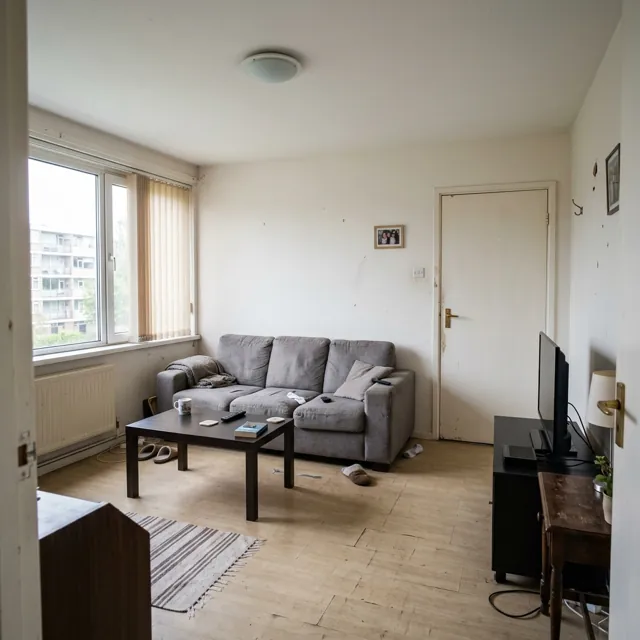
Add a room
On the Rooms tab tap New room. Take a photo or choose one from your library, pick the room type (living room, bedroom, kitchen, dining room, home office, kids' room, bathroom, entryway or another space) and give it a name.
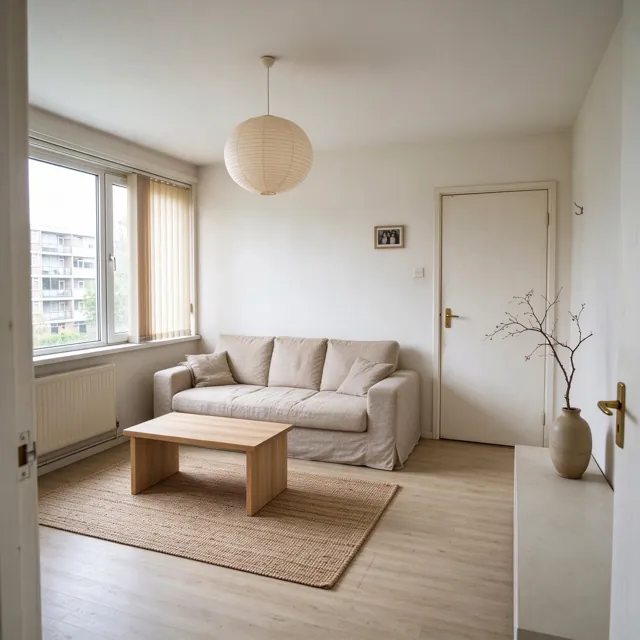
Choose a style
Start a new version and pick one of the 12 interior styles. After the style quiz, your best-matching styles are shown first under “For you”.
Fine-tune (optional)
Add items such as a plant, rug or floor lamp, or a photo of a piece you own. Revise the furniture's wood finish or sofa color, tidy up, and change the wall color and finish, the flooring and the lighting mood and fixtures.
Review and create
Check the summary of your choices, add a short note if you like, and tap Design this room. Creating a design needs RoomGlow Pro and an internet connection.
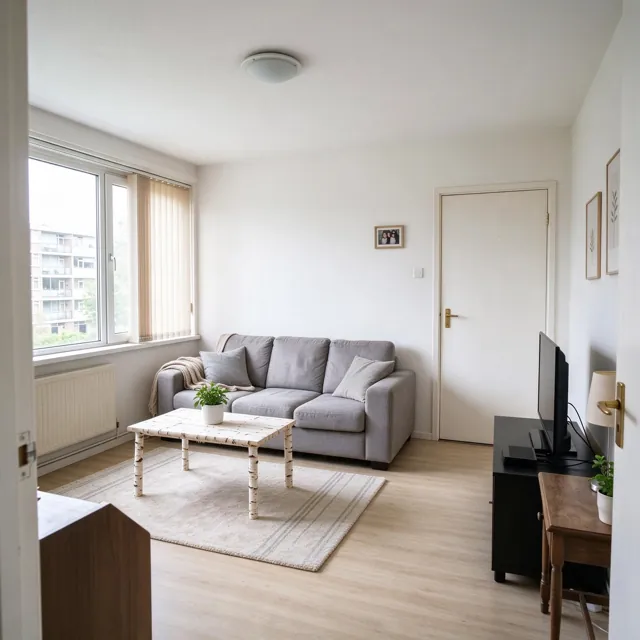
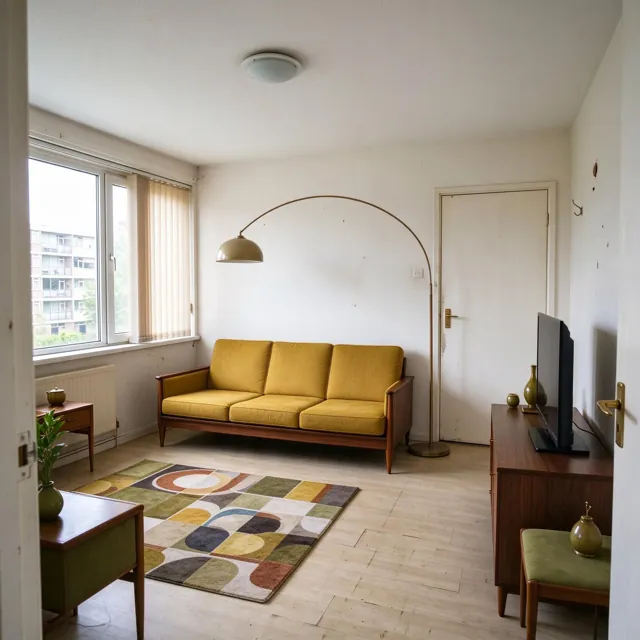
Compare before and after
Drag the slider across the photo to compare. Save or share the result, save it in HD, or, with Pro Video, create a reveal video.
Read the palette and materials
Switch to Palette & materials to see the main colors of the design with names, hex codes and shares, and a list of the style's signature materials plus your choices.
Keep designing
Every design lands on the room's timeline. Design a new version, redo one with the same picks, or add a newer photo of the room as it changes.
What changes and what stays
RoomGlow asks the AI for a restyle of the same room, not a new room. Walls, windows, doors, the ceiling, the room's shape and the camera angle are meant to stay; existing furniture keeps its place, type and rough size, while finishes, colors, fabrics and small decor change.
Two fine-tuning options deliberately go further: Replace old furniture swaps dated pieces for modern ones of similar size, and Empty the room removes all furniture. AI results can still vary, so treat each design as a visual idea.
Finding your style with the quiz
The style quiz asks 5 visual questions about rooms, palettes and materials and scores all 12 styles. The result names a lead style and a color mood, such as “Japandi with warm accents”, and lists runner-up styles and signature materials.
Your result puts your styles first in every new design. You can share it as a card, start a design in that style straight from the result, or retake the quiz in Settings.
How the palette is made
For each design, RoomGlow finds the dominant colors on your iPhone, without sending anything, and names them in interior terms like Sage, Greige or Walnut, with hex codes and percentages. The materials list combines the style's signature materials with the walls, floor, furniture, lighting and items you chose. Both can be shared as a card.
Tips for a good room photo
- Shoot in daylight with the lights on, so colors and corners are clear.
- Stand in a doorway or corner and hold the phone level to show as much of the room as possible.
- Keep the same spot for later photos; versions are easier to compare.
- Clear people and pets out of the frame.
- Try the Tidy up options if the room is messy; they remove clutter but keep the furniture.
What RoomGlow is not
RoomGlow does not measure the room, draw a floor plan or link to products in shops. The designs are AI images for deciding on a direction: a color, a style, a finish. Check sizes, materials and paint samples in person before buying.